


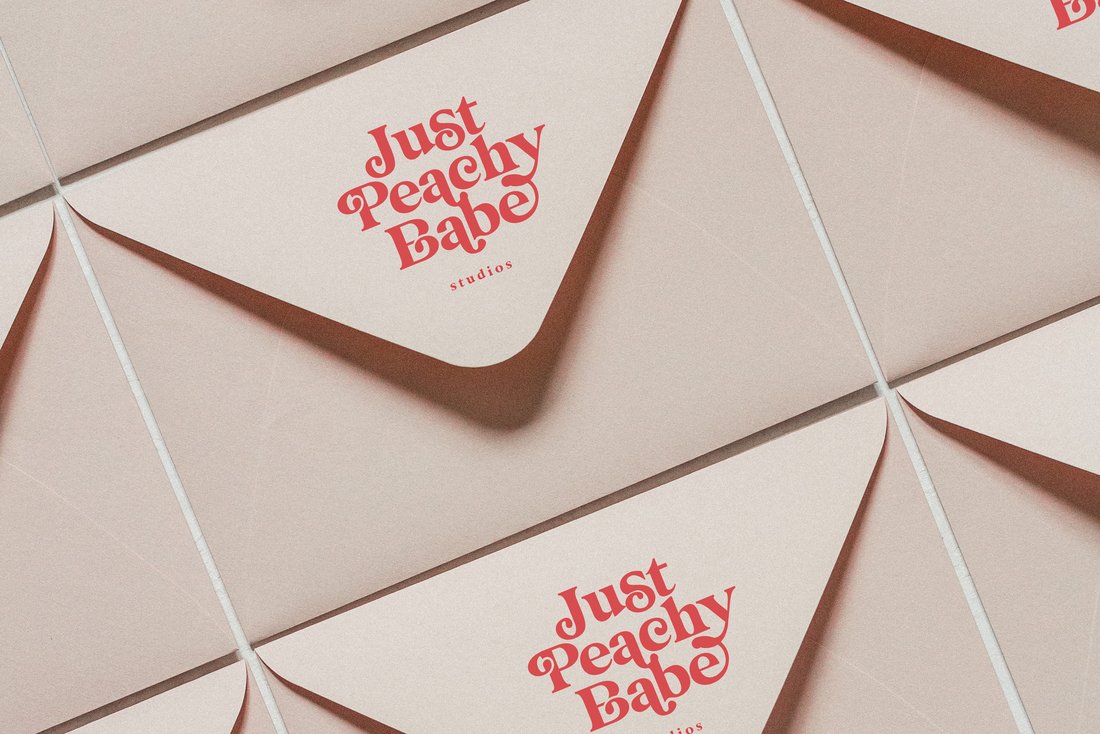


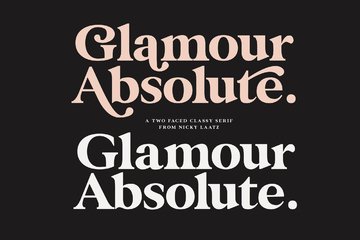
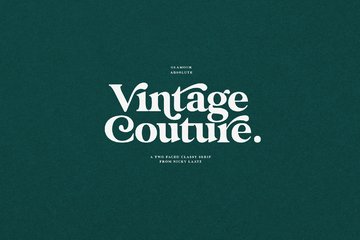
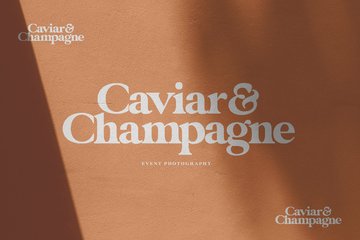
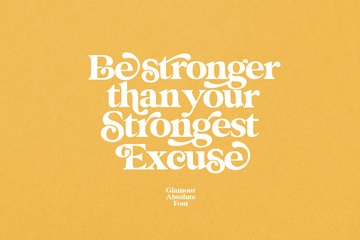

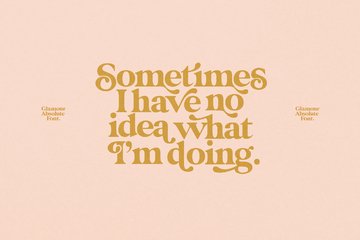
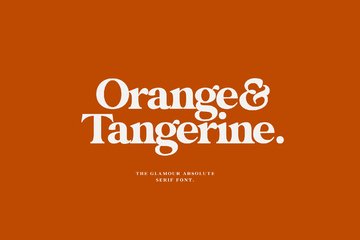
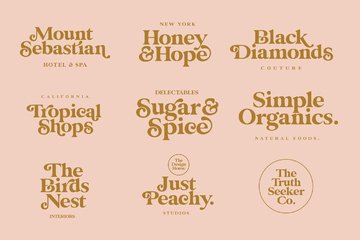



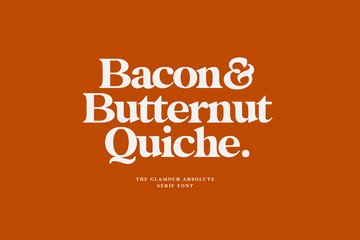
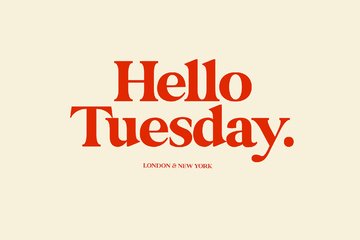
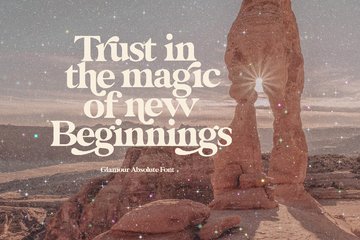
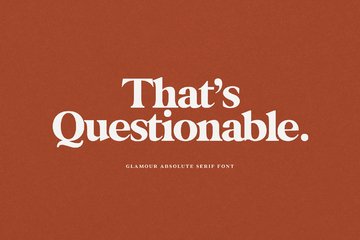








Glamour Absolute Modern Vintage Font



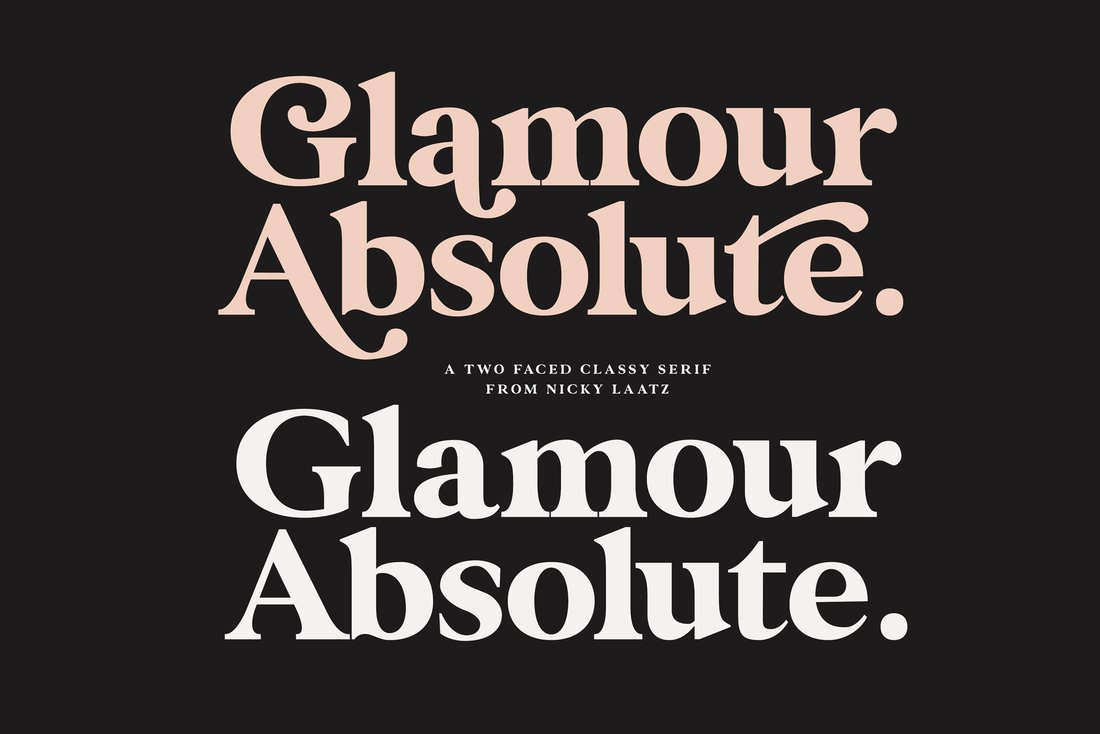
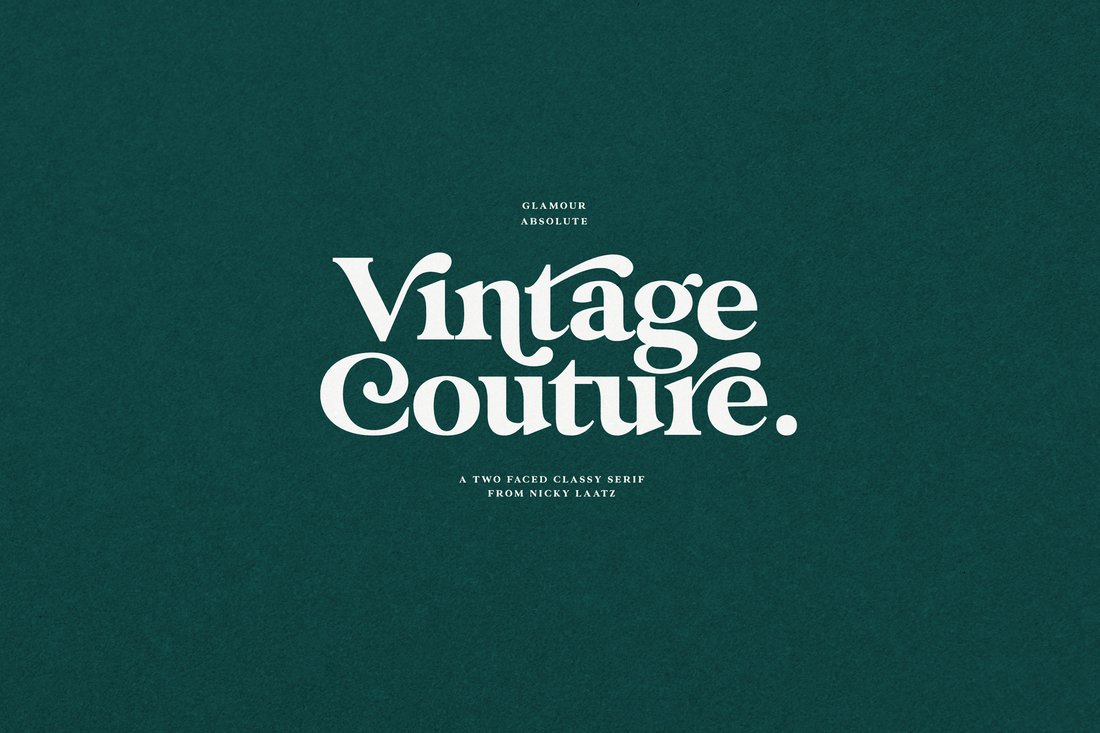
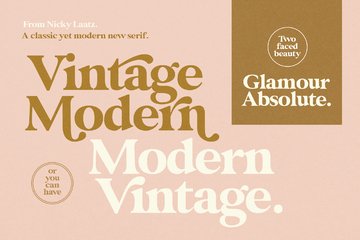
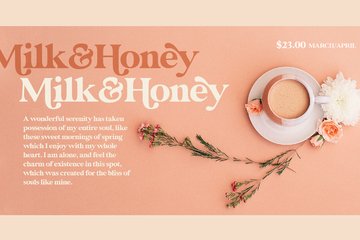
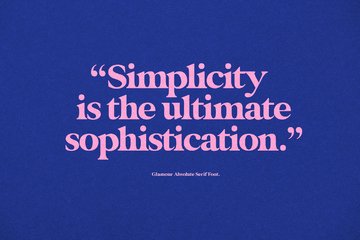
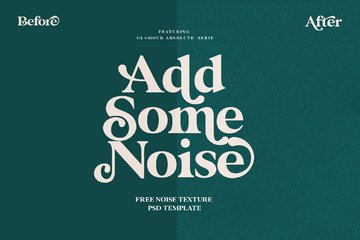
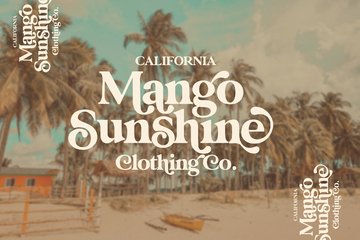
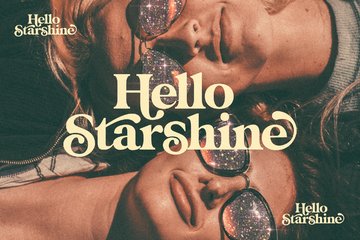
Introducing Glamour Absolute - A brand new two-faced bold serif with both modern and vintage curves.
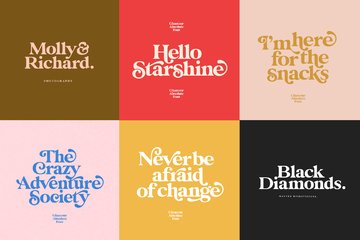
A Two-faced beauty : Modern or Vintage
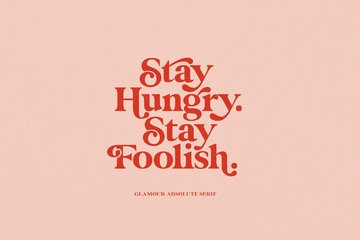
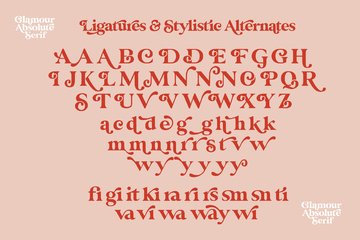
If you are going Vintage Retro : Access your OpenType features to access the large selection of alternate letters and ligatures, select the letters you like from the large variety to get the vintage look you are after. Vary between a light and heavy vintage look based on how many letters you alter.
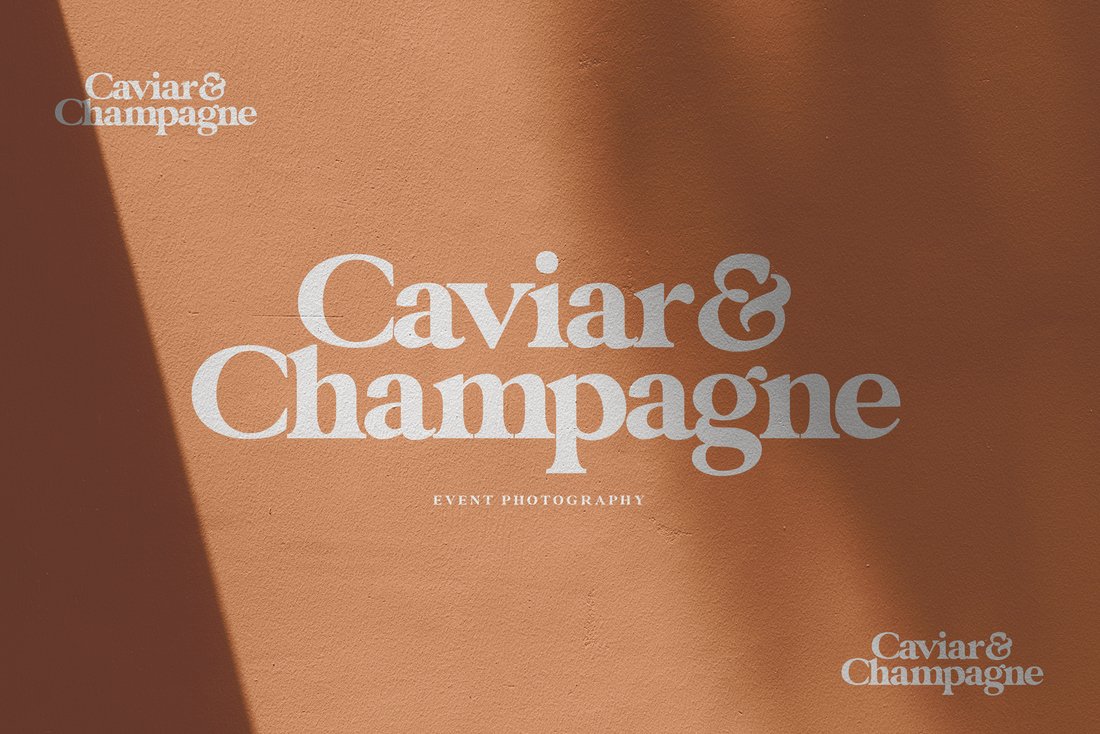
If you are going Modern Chic : Just type with regular letters :) Play with your letter spacing to add even more class to your designs.
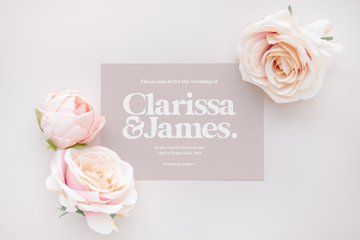
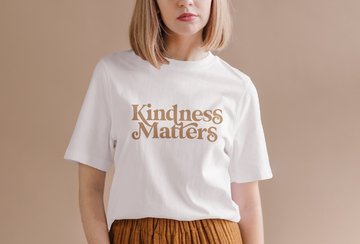
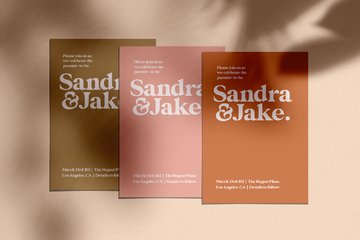
Due to its split personality , Glamour Absolute is a very versatile font, covering a wide range project types, from bold magazine imagery , to wedding invitations, to branding, poster design and so much more.
The fancy alternate letters are built into the font and can be accessed via OpenType Features in a wide range of apps including Pages, Textedit, Photoshop, Illustrator and Indesign.
Included in this pack :
- 3 Styles of Glamour Absolute fonts - Regular, Extended and Condensed.
- A free Photoshop Template with the subtle noise texture (at various strengths to suit your design) used in these previews.
- A Help file for non-open type users (Such as Canva) .
I hope you enjoy!
Product updates
- 04 Jan 2022 - Languange support for Polish and Czech charaters added.
- 19 April 2022 - Improvements have been made for non-opentype users, i.e. Canva. The download archive no longer contains ALT files. Please read the updated help file for details.
- 17 October 2022 - Font updated to remove artifacts at high resolution.
Glamour Absolute Modern Vintage Font FAQs...
You need to be logged in to access FAQs...
Standard Desktop EULA
This is Our standard license. Use this license to install the font on your Desktop or Workstation and for Print and Flattened static images on websites.
The standard desktop EULA included with Font Software purchased in full from Nicky Laatz, grants an Individual (as named on the invoice), herein You, Your, Licensee:
A single (one), ongoing, non-exclusive, non-transferable, terminable, worldwide license for Print and Web only.
Use of the Font Software is granted in such a way that it conforms to the Terms of Use of https://nickylaatz.com and the terms and conditions as set forth in this agreement.
By purchasing, downloading, accessing, installing and or using the Font Software, You agree to be legally bound by this agreement with Nicky Laatz. Any rights not expressly granted to You in this agreement remain strictly reserved.
Should You breach any of the terms and conditions as set forth in this agreement, the agreement and license to the Font Software will be automatically terminated until such time as the breach is remedied.
Upon Nicky Laatz receiving Your license fee in full for the Standard Desktop EULA, the Licensee, as named on the invoice, shall be granted the following rights:
YOU CAN
License Grant. Any rights not explicitly granted in the license grant remain strictly reserved.
- Install the Font Software on up to two (2) computers or work stations only, provided that both computers or devices are owned by You.
- Install the Font Software on a networked server owned and controlled by You for Your internal use, provided that each network client that can access the Font Software on the networked server has a license.
- Use the Font Software in Your personal or commercial projects.
- Use the Font Software for designing and creating invitations, business cards, logos, branding, greeting cards, marketing materials, packaging designs, static (flattened) images on web sites, apparel, books and stationary; in all cases the Font Software can only be used in the static non-editable part of Your final product.
- Share, lend, or distribute the Font Software with a third party Service Provider that has been contracted to You or Your company for the duration of the contract, provided that the Service Provider:
- Agrees to be bound by the terms of this Agreement; and
- Requires the Font Software to create and design digital and or print assets for You or Your Company; and
- Agrees to purge all copies of the Font Software upon the termination or culmination of the contract.
- Shall have no rights to the Font Software.
- Enjoy unlimited prints, media copies, duplicates and item sales of Your static final products, subject to the Font Software not being offered as a Freebie. Freebies are regulated by Our Terms and Conditions and have commercial limitations.
- Enjoy unlimited web page impressions using static flattened images. If You would like to use the Font Software as a live web font You will require a web font license. Please contact Us for more information.
- Embed the Font Software into an Electronic Document limited to internal non-commercial use. The Font Software must be embedded in such a way that an unlicensed end user may not extract or access the Font Software.
- Distribution of the Electronic Document is permitted only to contracted Service Providers where the Service Providers agree to be bound by this agreement and purge all copies of the Electronic Document on completion of the contract with the Licensee.
- Make a single (one) backup copy of the Font Software for archival purposes and You agree to retain exclusive custody and control over the copy.
YOU CANNOT
License Restrictions, illustrative not exhaustive.
- Resell the Font Software as is, or any derivative of the Font Software.
- Intermediate a license purchase on behalf of another party and or markup the cost of the Font Software.
- Distribute the Font Software with client proofs, templates, or in un-flattened files except as provided for in the license grant.
- Share, lend, rent or distribute the Font Software with any third parties except as expressly granted above.
- Offer the Font Software in a giveaway or promotion.
- Claim the Font Software, as is or any derivative thereof, as Your own work.
- Create any derivative works, alterations of any kind, from the original Font Software
- You will require express written consent to create derivative works.
- Any derivative works remain the property of Nicky Laatz.
- This EULA does not cover derivative works.
- Send an email to license@nickylaatz.com to request permission to create a derivative work or enquire about how to license derivative works.
- Use or install the Font Software on a Server (file, digital asset management or web) or in a mobile App, except as expressly granted above.
- Use the Font Software in such a way where a third party or End User can type with the Font Software and create their own End Products or Derivative Products (i.e. templates). Use of the Font Software in a SaaS service is strictly forbidden. (Send Us an email to license@nickylaatz.com with any questions You may have)
- Embed the Font Software in any of the following:
- Electronic documents
- Electronic devices (OEM)
- Computer software (OEM)
- Mobile Application Software (OEM)
- OEM: If you would like to license an OEM product, please contact Us.
- Use Font Software bought or downloaded on offer as a Freebie for Broadcasting or in motion graphics. For more information please contact Us
- Transfer Your rights to the Font Software to another party without express written consent. Send an email to license@nickylaatz.com for more information.
|
|||
ILLEGAL DOWNLOADS AND OR ACCESS TO THE FONT SOFTWARE
Should You have obtained the Font Software illegally, i.e. peer sharing, renting, downloaded or accessed it via a link or website not affiliated to Nicky Laatz (See definitions for Official Retailers); and or not paid for the EULA You are in breach of this agreement and have no rights to the Font Software. See contact details below to enquire on how to purchase a license to the Font Software.
JURISDICTION, OWNERSHIP AND COPYRIGHT
You, the Licensee, agree and understand that:
- This agreement is governed by the laws of the United Kingdom. Any dispute arising from or in connection with this agreement shall be resolved by an independent appointed arbitrator in the United Kingdom.
- The Font Software is the property of Nicky Laatz. Nicky Laatz, her successors and her assigns retain all right, title and interest in and to the Font Software. Any rights not explicitly granted by this agreement remain strictly reserved.
- The Font Software is protected by local and international CopyRight, Intellectual Property and Design laws.
AMENDMENTS
Nicky Laatz reserves the right to make amendments to this agreement at anytime and without notice. It is the Your responsibility to ensure that You check the EULA periodically to ensure that Your usage of the Font Software is still compliant with this EULA. This agreement may only be modified by an authorised appointee on behalf of Nicky Laatz.
DEFINITIONS
| You, Your, Licensee | Means the person or individual (not a business) who has complied with the https://nickylaatz.com Terms and Conditions when Signing Up to https://nickylaatz.com, has an account in good standing and is the Licensee, as named on the invoice, being bound by this agreement. |
| Nicky Laatz, We, Our, Us, Licensor | Means Nicky Laatz, Nicky Laatz Creations, its successors-in-title or duly appointed assignees. |
| End User License Agreement (EULA). | This is the standard or base license agreement and grants a single (one), ongoing, non-exclusive, terminable, worldwide license for Print and Web only, subject to the terms and conditions herein. |
| Font Software | The unique, original design of the font, which once compiled generates a typeface(s) and or typographic design(s) and packaged as either a Truetype format (TTF) or Opentype format (OTF). The Font Software includes, but is not limited to: Any media, printed materials, electronic documentation, updates, add-ons, artwork, web services and any other material that may be associated or distributed with the product now or in the future. The font software shall be extended to comprise of all bitmap and or outline representations of the typeface and or typographic designs. |
| Nicky Laatz Official Retailers |
|
| Service Provider | A Service Provider is a vendor that provides solutions and/or services to their customers and organizations. Service Providers incorporates digital agencies such as printing services, graphic design studios and marketing agencies that provide products and solutions to their customers on a contractual basis. |
| Software as a Service (SaaS) | This term refers to software applications delivered over the Internet or Software as a Service. Image Editing Tools and associated digital assets (and others) are centrally hosted on a SaaS Provider's servers and is made available to the SaaS Provider's End Users, usually on a subscription or fee basis. End Users can access the software and digital assets to create their own End Products or Derivative End Products (template products). Nicky Laatz expressly reserves all SaaS and end user personalisation rights for all her licensed assets. |
| Electronic Document(s) | This term refers to a PDF, Microsoft Word or Microsoft Powerpoint document only. |
AGREEMENT
You, the Licensee, acknowledge that You have read this agreement and understand it and that by using the Font Software You will be bound by it's terms and conditions. You further agree that it is the complete and exclusive statement of the agreement between Nicky Laatz and You, the Licensee, which supersedes any proposal or prior agreement, oral or written as well as any other communications relating to the subject matter of this Agreement. No variation of the terms of this Agreement or any different terms will be enforceable against Nicky Laatz in the absence of her express written amendment or consent thereto.
CONTACT DETAILS AND QUERIES
- Queries about this license agreement can be sent to license@nickylaatz.com
- Requests for additional licensing information can be sent to info@nickylaatz.com
- You can contact info@nickylaatz.com should You have any other queries.
Please view our EULA page for more information and updates to our Licensing
Standard Desktop EULA | v 1.4
Nicky Laatz Creations Ltd. A UK Company registered in England and Wales (No.111 997 41). ® 2018. 106 Kenwyn Street, Truro TR1 3BX.